QR
Upload from a phone
Guests scan the QR code and choose photos from their phone. They do not need to install an app.
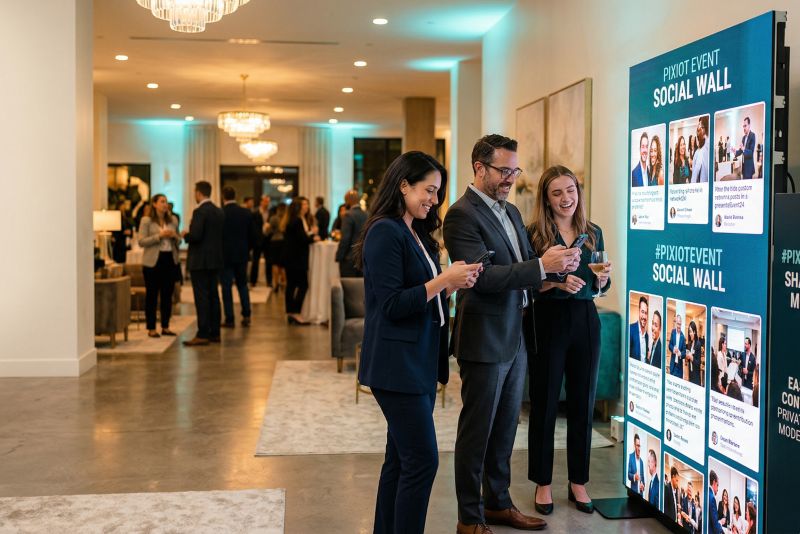
Put attendee photos on a screen at your conference. Participants scan a QR code and upload from their phones, without posting on social media.
Attendees upload directly to your private Pixiot gallery. The social wall view displays every new photo automatically. Everything stays under your control, separate from any social media platform.
Give guests a place to share the photos they take. A QR code connects their phones to your event gallery.
Guests scan the QR code and choose photos from their phone. They do not need to install an app.
Each guest can add the photos they took, alongside the pictures from your photographer.
Keep the uploads together so you can browse and download them after the event.
Create the gallery before the event, then give guests its upload link or QR code.
Set up a private Pixiot gallery for your event.
Put the gallery QR code on table cards, signs, or a screen at the venue.
Guests upload from their phones. Browse the gallery during the event or download the photos afterwards.
The hashtag-based conference wall has a fundamental problem: it requires attendees to use a specific social platform, post publicly, and hope the algorithm surfaces the post in time. Pixiot's social wall removes all of those dependencies.
Pixiot generates a QR code and upload link for your conference. Attendees scan the code, choose a photo, and it appears on the social wall within seconds — no public posting, no hashtag, no approval delay.
Because uploads are private by default, you control what appears on the wall. The result is a cleaner, more professional display than a public hashtag feed.
The social wall view opens in any browser. Plug it into the display system your venue already has — a second monitor, the lobby screen, or the screen between sessions. No additional hardware or software.
Photos uploaded to Pixiot stay in your gallery. You own the content, control access, and can use the photos for internal recap, press kits, or next year's event promotion — without dealing with social media permissions.
This is a strong fit for organizers who want more participation, cleaner collection, and less post-event chaos.
The more people involved, the more valuable simplicity becomes.
A central gallery gives you a fuller story of the event.
A private social wall gives attendees a shared visual experience without requiring public posts or platform accounts.
Common questions about setting up a conference social wall with Pixiot.
They scan the QR code or open the gallery link on their phone, then follow the upload steps in their browser.
Put it where guests will see it: on table cards, near the entrance, or on a screen at the venue.
No. They can upload through the browser on their phone.
Yes. Photos are collected in your private Pixiot gallery.
Launch a private gallery, make access obvious, and collect stronger memories with a path people will actually use.