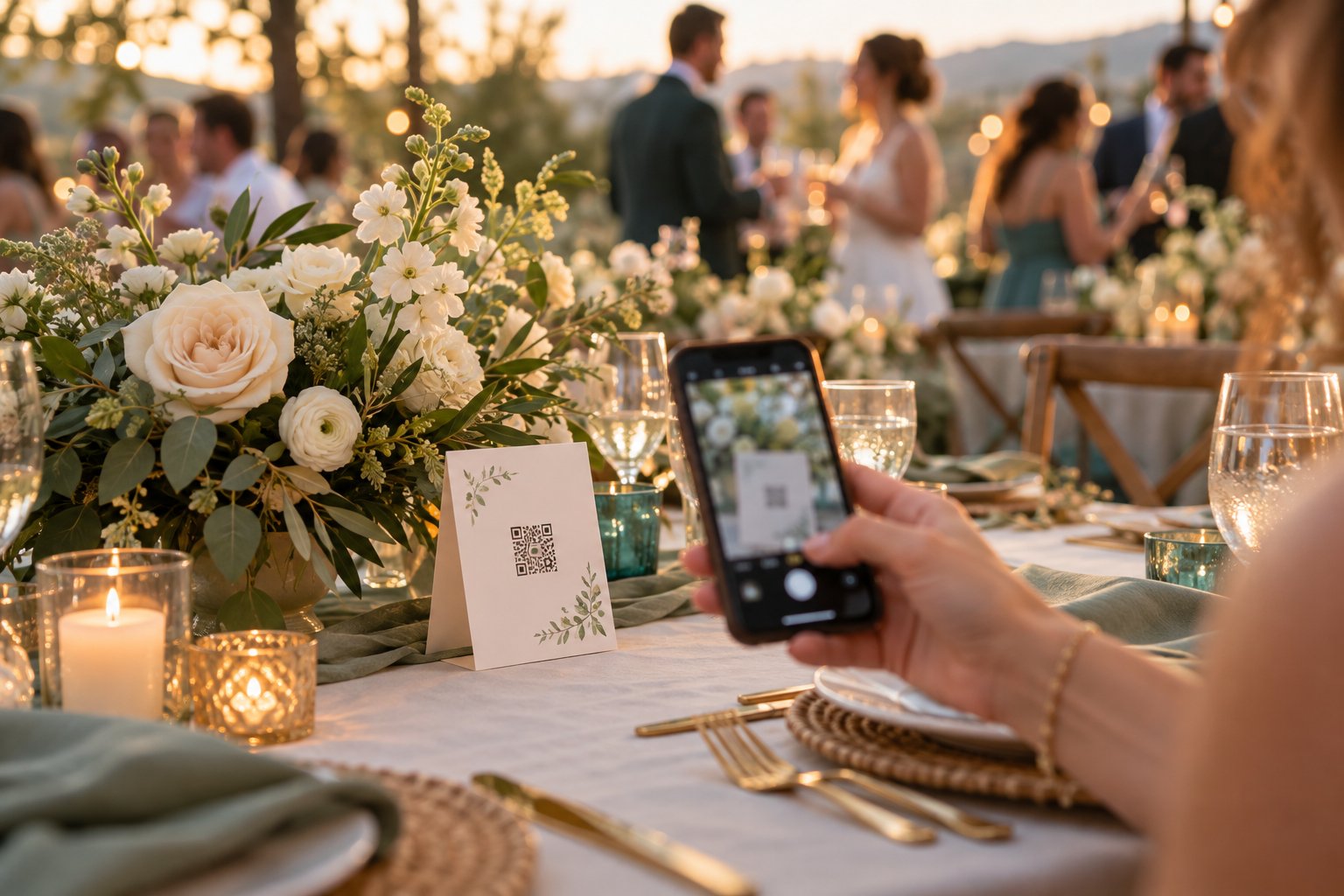
A wedding photo QR code opens a shared gallery where guests can upload pictures from their phones. With Pixiot, they open the gallery in their browser, so they don't have to install an app or create a guest account. The useful part is what happens after the scan: guests need to understand where their photos will go and what to do next.
Before you print your wedding table signs, set up the gallery, try the upload yourself and write an invitation that makes sense to someone seeing it for the first time.
Link the QR code to the guest gallery
Create your event gallery and use its guest link for the QR code. Keep the organizer's dashboard link for yourself. Scan the code with a phone that isn't signed into your organizer account; you should reach the page intended for guests.
A QR code is a shortcut to a web address. It doesn't store the wedding photos, and it doesn't give the gallery extra storage time. Check your plan's upload and gallery access periods before sharing the code, especially if you're printing stationery well ahead of the wedding.
Pixiot's guide to QR codes for wedding photos explains the gallery workflow. If you're comparing services, start with the guest experience: how many steps does it take to add a photo?
Give the table sign one clear job
A guest glancing at the table card should know that the code is for sharing photos. A bare QR code could just as easily be a menu or a seating plan. Add a short headline and a sentence explaining the upload.
Here's wording you can use on your wedding photo sign:
Share your wedding photos
Scan this code to add your photos and videos to our wedding gallery.
You can upload from your phone. No app or guest account needed.
Put the couple's names above the message if several events are taking place at the venue. Beneath the code, include the guest gallery address as an alternative for anyone whose camera won't scan it. Copy the address from your actual gallery; the image accompanying this article is an illustration, not a working QR code.
Keep the code sharp, with clear space around it and good contrast against the paper. Print a sample at the final size before ordering the rest. Decorative borders, shiny finishes and dim reception lighting can make a design that looks lovely on a laptop harder to scan.
Put it where guests have time to use it
Reception tables are a useful starting point because guests can scan while they're seated. Place the card where flowers or glassware won't cover it. A welcome sign can introduce the gallery, but guests arriving with coats and gifts may prefer to upload later.
Ask your MC or DJ to mention the cards during a pause in the reception. Keep the request specific: "If you took photos today, scan the card on your table to share them with the couple." Guests can add pictures already in their camera roll.
If you're showing a live wedding slideshow, test the screen at the venue and decide who will watch over it. Check the gallery's moderation settings before displaying guest uploads to the room.
Test the whole upload before the wedding
Ask someone who hasn't helped with the setup to try your printed card. Let them follow the instructions without coaching. That catches unclear wording as well as technical problems.
- Scan the printed code on an iPhone and an Android phone if you have access to both.
- Check that it opens the correct event's guest gallery without an organizer login.
- Upload a photo from the camera roll and check that it arrives in the gallery.
- Try a short video if your chosen plan includes video uploads.
- Test the venue's Wi-Fi or mobile connection. Guests need internet access to upload.
- Check the download process and note when gallery access ends.
If the venue connection is weak, keep the same guest link available after the reception and ask guests to upload when they're connected. Avoid telling them that scanning the code alone has saved their photos.
Follow up while the photos are still easy to find
After the wedding, send the gallery link with your thank-you message. A simple request to add photos from the day gives guests another chance to contribute without asking them to search through a group chat.
Leave time for those uploads within your plan's limits, then download the collection and keep your own backup. An event gallery is a convenient place to gather photos; your long-term copy should be somewhere you control.
Questions about wedding photo QR codes
Do guests need a photo-sharing app?
With Pixiot, guests use their phone browser. They scan the QR code or open the guest link and upload without installing an app or creating a guest account.
Can a QR code stay useful after the wedding?
Yes, while its destination gallery remains available. Check the upload deadline and access period in your plan; printing the code doesn't extend either one.
Does this replace a wedding photographer?
Guest uploads collect the pictures people choose to share. A photographer provides planned coverage and edited photographs. The guest gallery adds another view of the day.
Create your Pixiot gallery, test the guest link, and then print your cards. You can review the current event plans and gallery access periods before choosing a plan.
← Back to Blog