1
Create the event
Create a Pixiot event and download the QR code and the printable table card.
Put a live event slideshow on any screen. Guests scan a QR code, upload from their phones, and their photos show up on the big screen a few seconds later.
It works for conferences, company parties, birthdays, school events, festivals and product launches. Open the Live Wall link on a TV or projector and leave it running. Nobody needs an app, an account or a hashtag, and nobody has to click through slides.
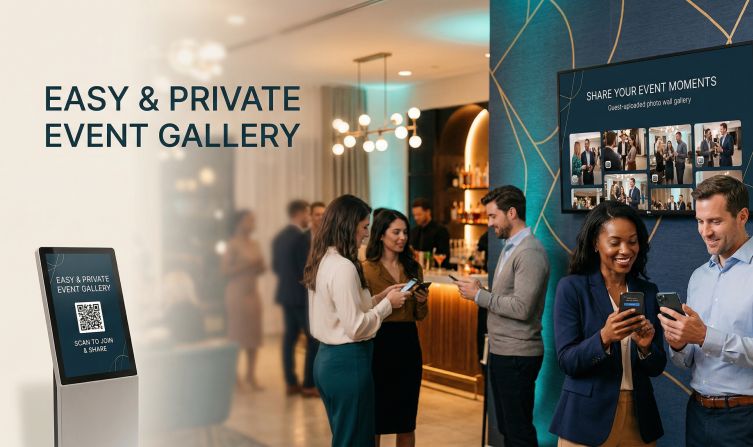
Set it up before the event in a few minutes. During the event it runs on its own.
Create a Pixiot event and download the QR code and the printable table card.
Open the Live Wall link from your dashboard on the venue screen, a TV or a projector.
Guests scan the code and upload. Photos and videos appear on the slideshow with the likes they get.
A slideshow made before the event shows what already happened. A live slideshow shows the room to itself, right now, and people add more photos when they see theirs on screen.
The QR code stays on the slideshow screen, so anyone who walks in can scan it and add photos from the browser on their phone.
Guests scroll through everyone’s photos on their phones and like their favorites. The likes show up on the big screen too.
Photos from guests who skip the phone or email code wait for your approval. Delete anything with one tap, even mid-event.
The setup is the same everywhere: one QR code, one screen, one private gallery. What changes is where you put the screen.
Put the slideshow on the lobby screen or between sessions. Attendees see the event through each other’s eyes, and the communications team gets a full set of photos for the recap without chasing anyone. If you need a wall that stays inside the company, see our private social wall for internal events or the conference social wall.
A TV in the corner turns the photo collection into part of the party. People take more photos when they know they’ll see them on screen a moment later.
Planning a wedding? The live wedding slideshow page covers the reception setup, table cards and the questions couples usually ask.
The first photos usually come from the people closest to the screen. Once others see them, they pull out their phones too. That loop is why live slideshows collect far more photos than a link sent the next day. For ideas on making it a game, read how a video wall and voting make events more fun.
The slideshow is only the visible part. Every upload is saved in your gallery, so you can download all the photos afterwards. Guests can keep adding photos until the end of the next day, and verified guests for up to 30 days.
What organizers usually ask before they put guest photos on a screen.
A screen with a web browser: a TV, a projector, a laptop or the venue’s lobby display. Open the Live Wall link from your Pixiot dashboard and leave it running. Nothing to install.
They scan the QR code with their phone camera and upload from the browser. They don’t need an app or an account. The QR code also stays on the slideshow screen, so people who arrive late can join.
Yes. Guests who confirm their phone number or email with a code go live straight away. Uploads from everyone else wait in your dashboard until you approve them. You can also turn approval off so every upload goes live, and you can delete any photo at any time.
Yes. Approved photos and videos both appear on the Live Wall, together with the likes each one gets from guests.
No. New uploads appear on their own, so nobody has to click through slides. If approval is on, someone only needs to approve photos from the dashboard on their phone.
Create the event, print the QR code and open the Live Wall. Setup takes a few minutes, and the live slideshow is included free.